Site indstillinger
Edit Site Settings (Site indstillinger)
To edit the site’s settings, you need to be in the backend. Read more about backend-editing here.
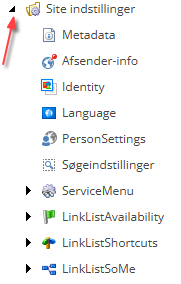
The following items in the drop-down menu are not to be changed:
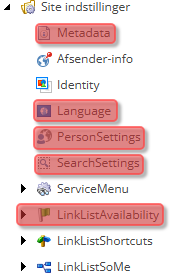
Afsender info
In the footer of the website, you can edit the sender details by clicking on Afsender-info in the drop-down menu.

Identity
You can change the colour of your site by selecting Identity from the drop-down menu.
The following items under Identity are not to be changed:
Edit your site's colour (Temafarve)
When you click under Temafarve, a drop-down menu appears where you can select the theme colour for the website. If no specific colour is selected, the default is Corporate Red.
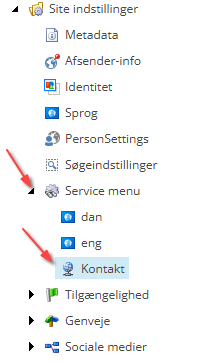
Kontakt
Add a link to the Contact-button by tapping Kontakt.
Shortcuts
You can change the shortcuts in the website footer by clicking on LinkListShortcuts.
The available shortcuts are:
- Telefonbog (Directory)
- Find-vej (Find your way)
- Institutter-og-centre (Departments and centres)
- Lokaleoversigt (Premises guide)
- Presseservice (Press office)
- For-levenradoerer (For service providers)
- Job-og-karriere (Job and career)
- Webshop
- Kursusbasen (Course base)
- Praktik-og-projektbank (Internship and Project Bank)
- Studieinformation-for-studerende (Study Information for Students)
- DTU-Inside
- DTU-Adgangskursus (DTU Admission Course)
- DTU-Alumni
- DTU-Bibliotek (DTU Library)
- DTU-Orbit

To select a shortcut
- First, tap the relevant shortcut in the drop-down menu that appears when you tap LinkListShortcuts
- Tap Publicer at the top of the Sitecore page
- If Godkend version til udgivelse is ticked, the shortcut will appear on the page
To deselect a shortcut
- First, tap the relevant shortcut in the drop-down menu that appears when you tap LinkListShortcuts
- Tap Publicer at the top of the Sitecore page
- If the Godkend version til udgivelse checkbox is not ticked, the shortcut will not appear on the page
Sociale medier
Add social media links to the footer of your website by clicking on Sociale medier
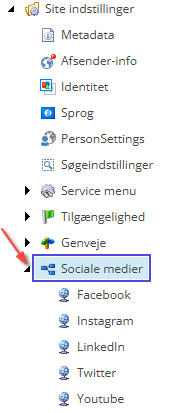
Procedure
- Select the social media platform you’d like to add to the website’s footer.
- Add the desired link. Read more about inserting links here.
- Tap Publicer at the top of the Sitecore page. If the Godkend version til udgivelse checkbox is not ticked, the social media will not appear on the page