Call to Action
Structure of the Call To Action module
A Call To Action module consists of:
- Link - the entire module functions as a link
- Title
Edit the Call to Action module
You can edit modules both Frontend in the Experience Editor and Backend in the Content Editor
See how to edit a module
In the page editor, click the pencil icon to edit the module.
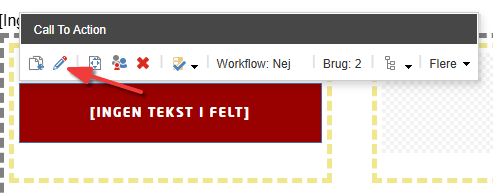
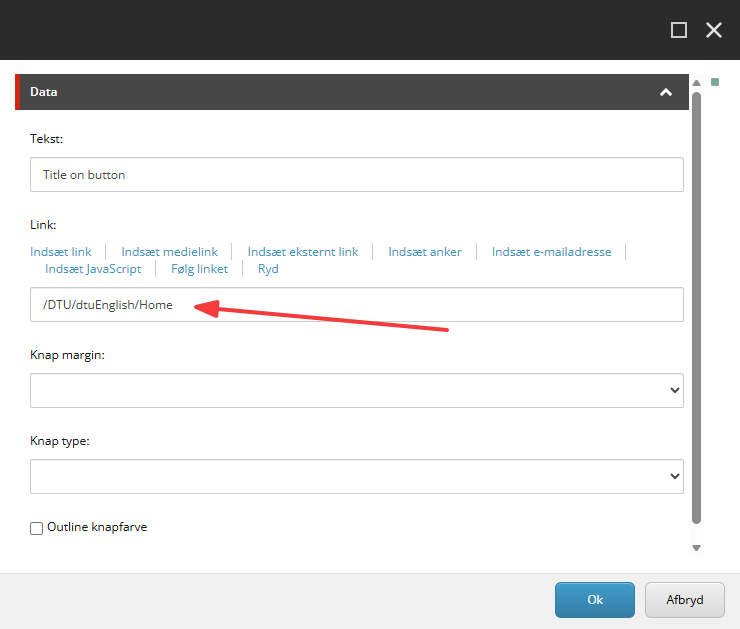
Enter the title for the Call to Action button
The title entered in the Tekst field is the one that will appear on the site.

Insert link
The following options are available:
- Indsæt link: This inserts a Sitecore element – that is, an element located on the DTU domain.
- Indsæt medielink: This inserts media stored in Sitecore’s media library (images, PDFs, etc.).
- Indsæt eksternt link: This inserts a link that cannot be found via Sitecore.
- Insert e-mailadresse: This allows you to insert an email address. The Vis tekst and E-mailadressen fields must be completed.
- Følg linket: Takes you to the page where the media or similar is located
- Ryd: Clears the link path so that you can insert a different link.
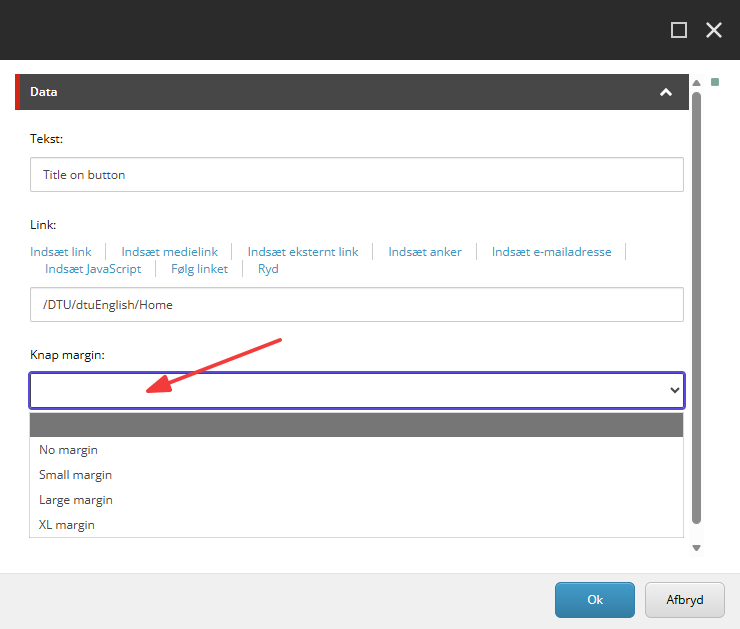
Edit the button’s margin size
Clicking the Knap margin field opens a drop-down menu with 5 options:
- Blank (module default)
- No margin
- Small margin
- Large margin
- XL margin
Examples of the different margin sizes:
Edit the button’s appearance on the page
Clicking the Knap type field opens a drop-down menu with three options:
- Blank (The module does not fill the cell)
- Full width (The module fills the cell)
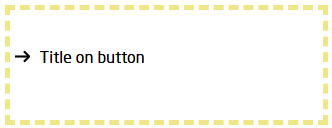
- Arrow

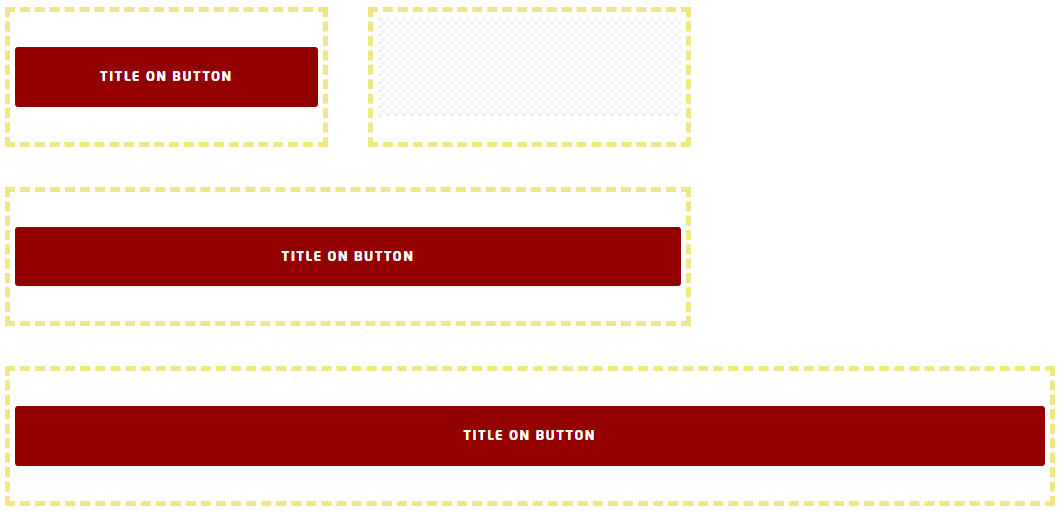
Examples of the Full width button type:
- Cell with a width of 3 columns
- Cell with a width of 6 columns
- Cell with a width of 9 columns
Example of the Arrow button type:
Edit the button colour
By ticking the Outline knapfarve box, you can further customise the appearance of your button. Please note that this does not change the appearance if the button type is Arrow.
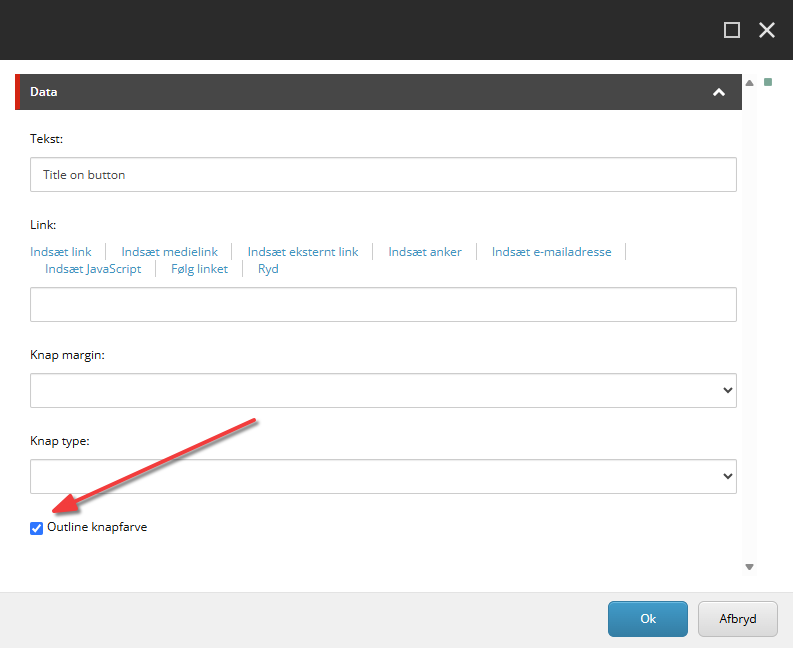
Example of Outline knapfarve: